
Research notebooks
Research notebooks let you analyse historical market data with Rust and AQE while keeping the work beside your strategy. Each notebook has its own cells, outputs, data settings and isolated local Rust session.
Create and save a notebook
Section titled “Create and save a notebook”- Open Research and choose a recent strategy project. Open the project from Projects first if it is not listed.
- Enter a title and select New notebook. You can create several notebooks for the same strategy.
- Add Rust or Markdown cells. Name cells using the title field; use the cell menu to move or delete them.
- Select Save to persist edits. Running a cell saves the notebook before execution and saves its output afterwards.
Notebooks are stored as research/*.ipynb in the strategy directory. Historical snapshots live in research/data/; per-cell run records live in research/runs/. Run records include the executed source, notebook revision, data configuration, snapshot hashes and results. Feed credentials are not saved in the notebook.
Switching tabs keeps unsaved drafts while AQS remains open. Reload from disk requires confirmation before discarding a draft and resetting its session.
Load historical data
Section titled “Load historical data”Choose a saved Data feed, not an execution broker. Custom connections use their display name with the provider in parentheses. Configure connections in Datafeeds.
Enter the provider’s exact symbols, an AQE timeframe such as 1m, 5m or 1h, and a start and end date and time. Both date pickers represent UTC, regardless of your computer’s timezone. Start is inclusive; end is exclusive and must not be in the future.
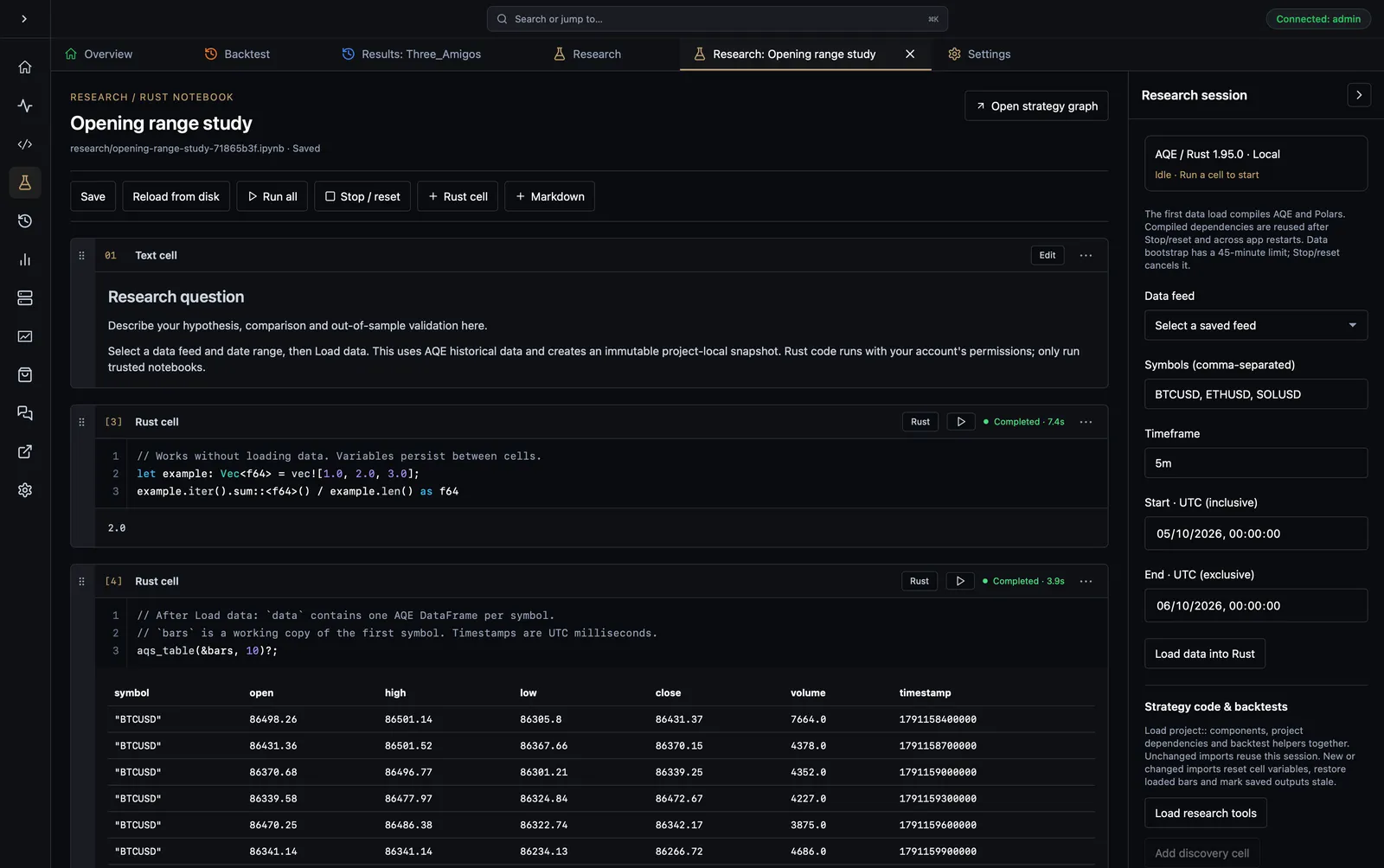
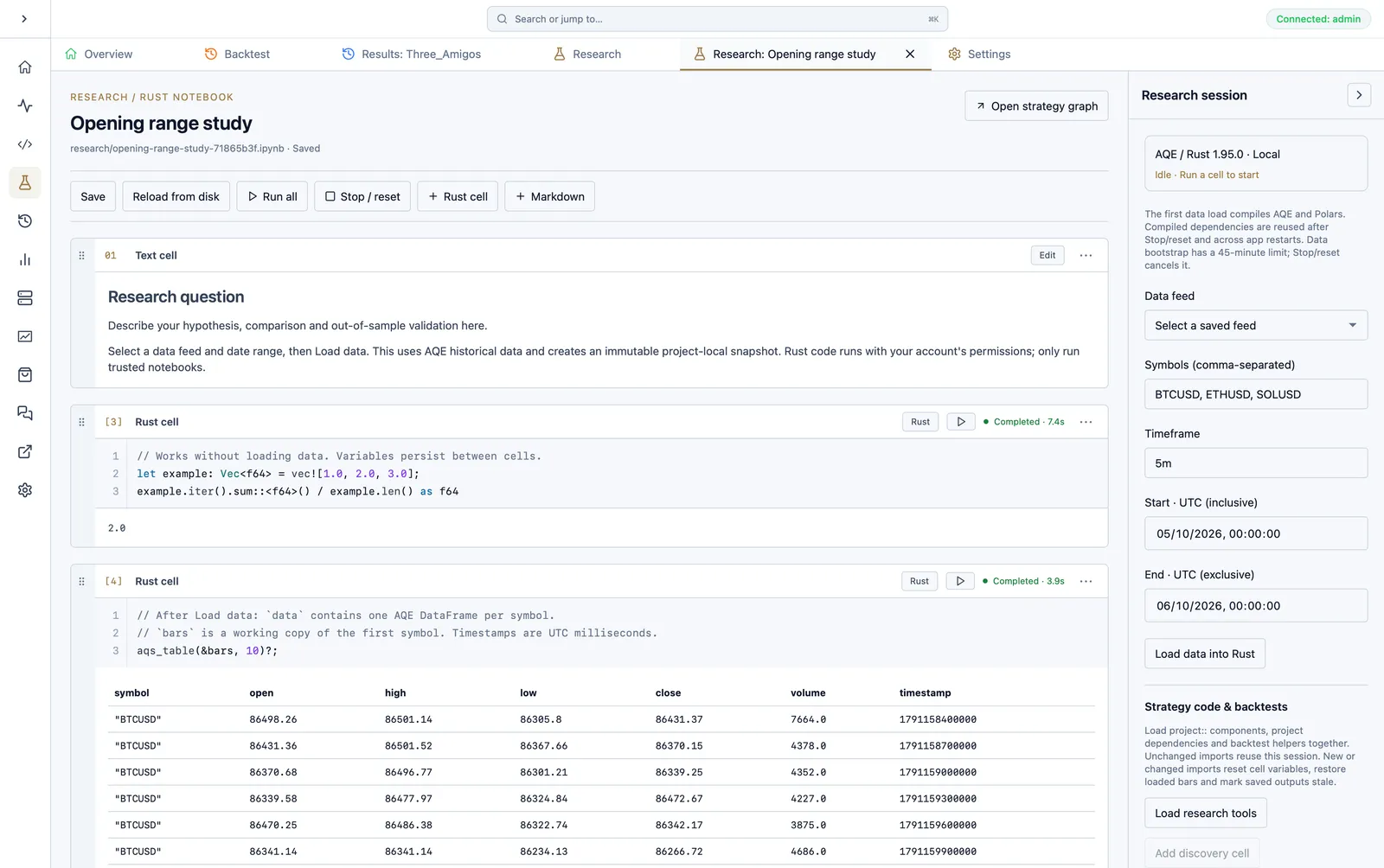
Select Load data into Rust before using bars, data or the AQS output helpers. The first load compiles AQE and Polars and may take several minutes. Each symbol becomes a Polars DataFrame in data; bars is a working copy of the first symbol:
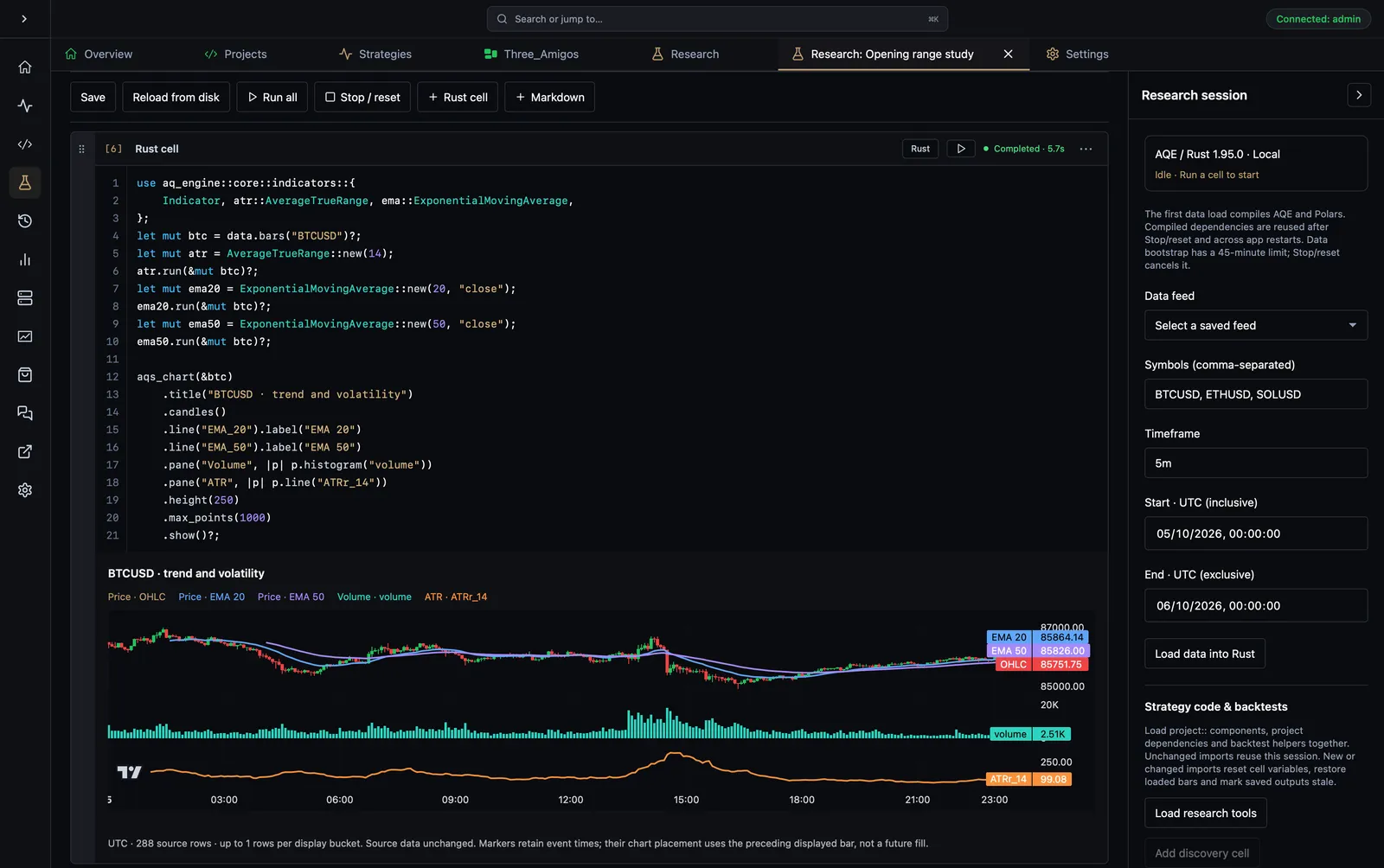
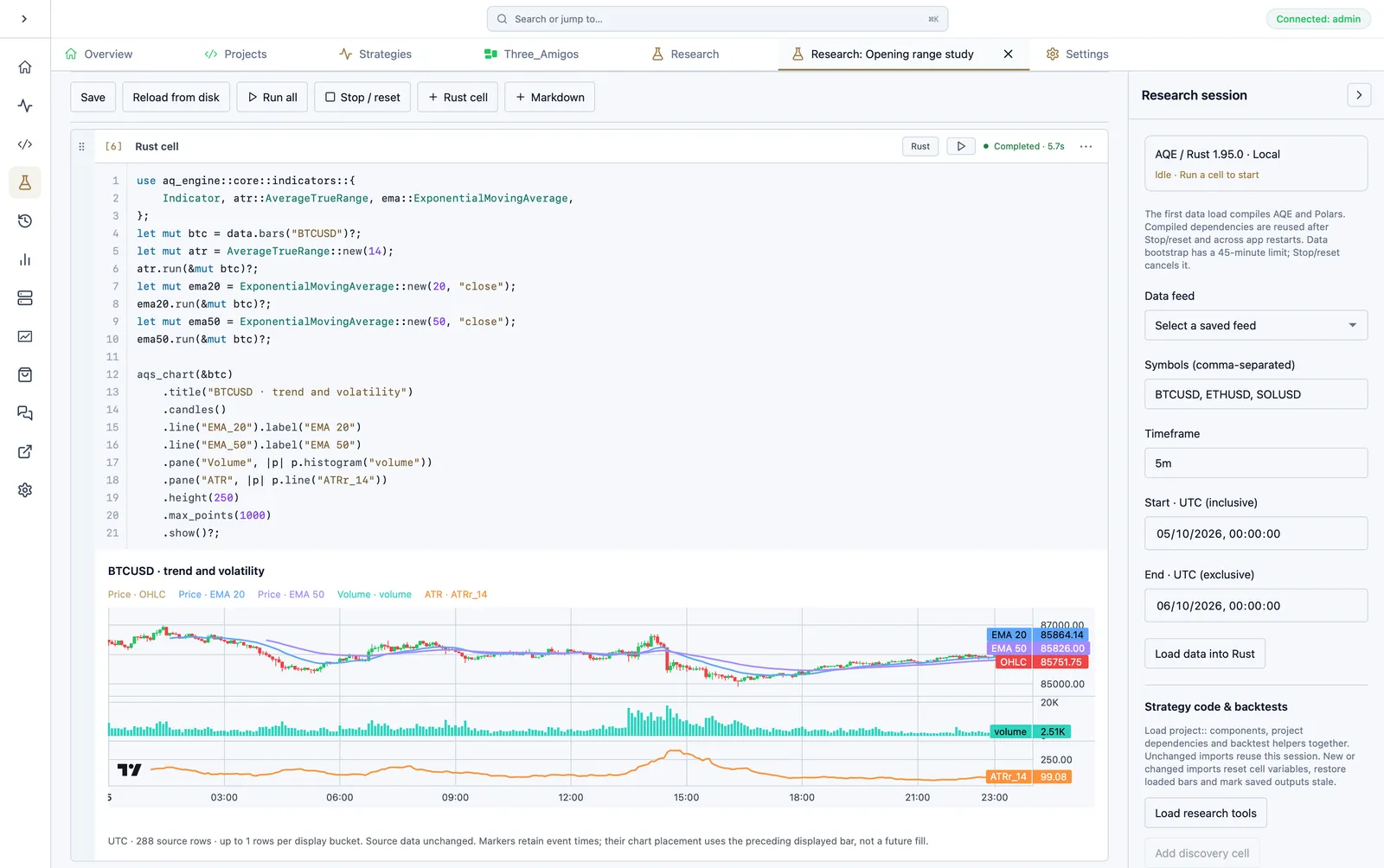
data.summary()?;let mut btc = data.bars("BTCUSD")?;aqs_table(&btc, 10)?;aqs_chart(&btc).candles() .pane("Volume", |p| p.histogram("volume")) .show()?;Use the symbol actually loaded, for example BTC-USD for Yahoo rather than an MT5 broker’s BTCUSD. CSV history must contain the exact symbol and timeframe; the notebook does not substitute a nearby timeframe. A missing or empty stream produces a loading error.
Use data.symbols() to list loaded symbols or select one under Loaded symbols and choose Add symbol analysis cell. This inserts a cell without running it. The chart helpers support overlays, separate indicator panes, distributions and normalized symbol comparisons.
Changing data settings requires loading data again. Snapshots make inputs traceable, but do not prevent look-ahead bias in your code: research cells can access the whole selected history.
Run and inspect cells
Section titled “Run and inspect cells”Variables persist between cells in one session. Other notebooks have separate variables. Up to four notebook sessions can be active across AQS; stop an unused session to free a slot.
Use the play button to run one cell or Run all to execute code cells in document order. Each cell shows its execution count, status and elapsed time. Time includes compilation and evaluation for that run; it is not a repeated benchmark or a measure of strategy throughput.
Errors appear in the affected cell. Run all stops on compiler errors, runtime errors, panics or stderr messages that need review. Intentionally writing warnings to stderr also stops automatic execution.
Stop / reset terminates the notebook session and clears its variables. Existing outputs remain, marked stale. Reload data and rerun dependent cells after resetting. Editing code or moving cells also marks affected outputs stale; this does not automatically undo variables already created in the session.
Dependencies and strategy integration
Section titled “Dependencies and strategy integration”Rust cells support Evcxr dependency declarations:
:dep chrono = "0.4.45"use chrono::Utc;Utc::now()Keep custom declarations in a saved setup cell and rerun it after resetting. Compiled dependencies use a persistent, per-notebook cache; Rust variables do not survive a reset.
In Strategy code & backtests, choose Load research tools to expose the linked strategy’s components through project::, together with the backtest helpers. An existing library’s public exports are used directly. For binary-only AQS projects, an adapter under research/imports/ exposes the modules from src/main.rs and unwired .alpha.rs, .pipe.rs, .indicator.rs, .logic.rs and .universe.rs files without editing the originals.
Normal project dependencies become available to cells. Relative dependency paths and inherited workspace dependencies are resolved; the notebook compiler is seeded with the project’s Cargo.lock. Research adds its own helper dependencies, so this is not a promise of a byte-identical lockfile. Optional dependencies still require the relevant Cargo features. Binary-only projects with a custom build script should expose a src/lib.rs library first.
Loading new or changed imports resets Rust variables, restores already-loaded snapshot bars and marks saved outputs stale. Clicking again with unchanged project imports reuses the running session without compiling or clearing variables. Saved project source, graph, manifest or lockfile changes require loading tools again. For external path-dependency changes, use Stop/reset and then Load research tools. Custom cells, functions, structs and additional :dep declarations remain supported.
The single Load research tools action prepares project imports and saved-backtest analysis without connecting a data feed. Its first compile can take several minutes; the panel shows compiler progress and elapsed time. Keep the notebook’s compilation cache to reuse built dependencies. See Strategy reuse and backtest comparisons for imports, caching, alpha signal studies, saved results, isolated experiments and heatmaps.
Open strategy graph returns to the linked project. Python and remote execution are not available in this version.
Share research in an AQI paper
Section titled “Share research in an AQI paper”The AQI paper section in the research session panel connects local notebooks to AQ Insights. Sign in, then choose:
- Use notebook as paper to open the full AQI paper editor in a new, separate local draft, with one component block per selected cell. This does not upload or publish anything and does not replace another unsaved paper.
- Attach to a paper to choose one of your private drafts and open its editor with appended notebook cell blocks. Existing paper content and unsaved editor edits are preserved. Published papers are excluded from this shortcut.
The Add notebook button in the paper editor toolbar sits alongside references and backtest blocks. Its dialog lets you choose a strategy project, notebook and individual cells, and choose whether to include source code and saved outputs. Review the rendered preview, then select Insert notebook cells. This only edits the local paper draft. It never executes cells or loads market data.
Each cell keeps its code and outputs together. Hover over a cell to reveal header icons for Move up, Move down, Add text before, Add text after and Remove block. Tooltips identify each action; keyboard focus reveals the controls too, and touch devices keep them visible. For an older whole-notebook embed, use Split into cells. These actions do not modify the source notebook. Readers in AQS can quote a passage within a cell rather than selecting the whole embed.
Notebook blocks preserve cell boundaries, Markdown, Rust source, table samples, multi-pane charts, scatter plots, distributions and plain-text results. The Research shortcut includes all supported cells with eligible saved outputs; use the editor picker for a narrower selection. Stale, failed or unverified outputs and execution logs are omitted, with warnings displayed in the block. Markdown images become descriptions; notebook HTML is treated as text. Readers can see the saved results without installing Rust or running the notebook.
Before confirming, review code and outputs for secrets and verify that you have permission to share included market data. Dataset files, local dataset paths, feed IDs, credentials and arbitrary notebook metadata are not uploaded automatically. Text you wrote or printed can still contain sensitive information. Selecting table outputs shares the displayed data rows.
Confirm the sharing-review checkbox in the paper editor, then choose Save Draft to upload privately or Publish to publish explicitly. Changing the paper content clears the review checkbox. Once the paper is saved, AQS records its link in the source notebook’s metadata when that notebook is available. The original notebook stays beside the strategy in research/. No cells execute during export or reading.
These are explicit snapshots, not live synchronization or executable notebook attachments. Later notebook edits do not change the paper. Add another notebook block for a new snapshot; select a block and press Delete to remove it from the paper. Notebook contents inside the block are read-only, while surrounding paper text remains editable. Charts are static, self-contained saved results; tables are previews of at most 100 rows and 50 columns. Each snapshot is limited to 100 selected cells and 2 MiB; papers containing notebook blocks also have a 2 MiB sharing limit.
Local drafts remain in memory when switching tabs but are not durable until saved. If a cloud save reports an uncertain outcome, inspect My Papers before retrying to avoid duplicate snapshots. If only saving the local notebook link fails, the paper is already saved; use the notebook’s Save, not export again.
Safety and troubleshooting
Section titled “Safety and troubleshooting”Only run notebooks you trust. Rust cells execute with your local account’s permissions; process isolation is not a security sandbox. Research does not automatically place trades, but user-written Rust code can access files, networks and APIs.
If bars is missing, successfully load historical data first. The helpers can also be installed with Load research tools without connecting a data feed. If the Rust runtime is unavailable, follow the toolchain message shown in the cell. A panic requires a session reset.
See Research charts and helpers for output functions and AQS charts for the separate market chart workspace.
We use essential cookies and storage for sign-in, account security, colour theme preferences, this notice, and required PostHog internal usage, session quality, and reliability metrics. We do not use advertising cookies.