
Live Strategies
The live strategy surfaces in AQS are designed for session supervision. They present AQE state in a form that is easy to scan while markets are moving.
Active Strategies Dashboard
Section titled “Active Strategies Dashboard”The dashboard gives you a portfolio-level view of running strategies. It answers the operational questions that matter first:
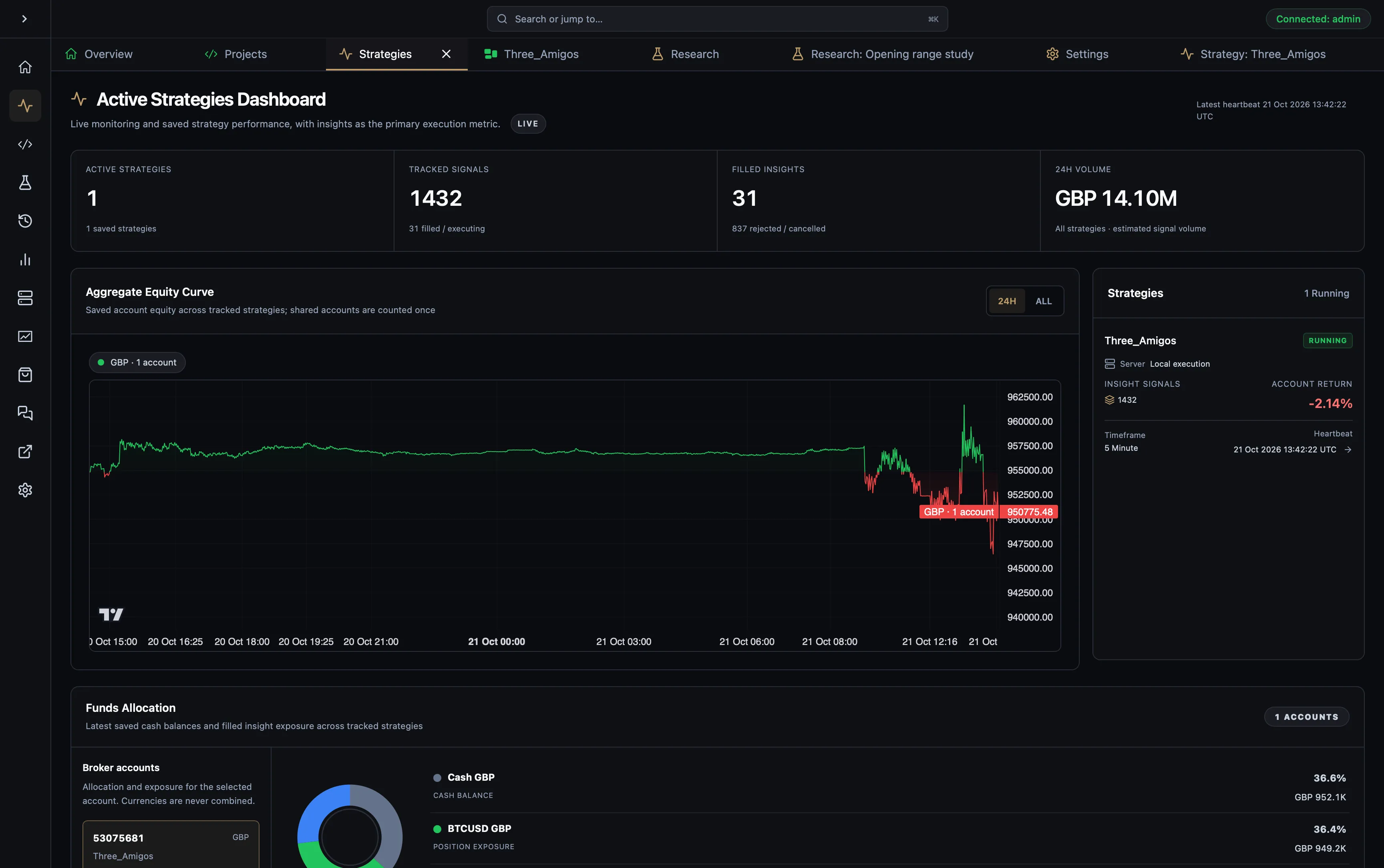
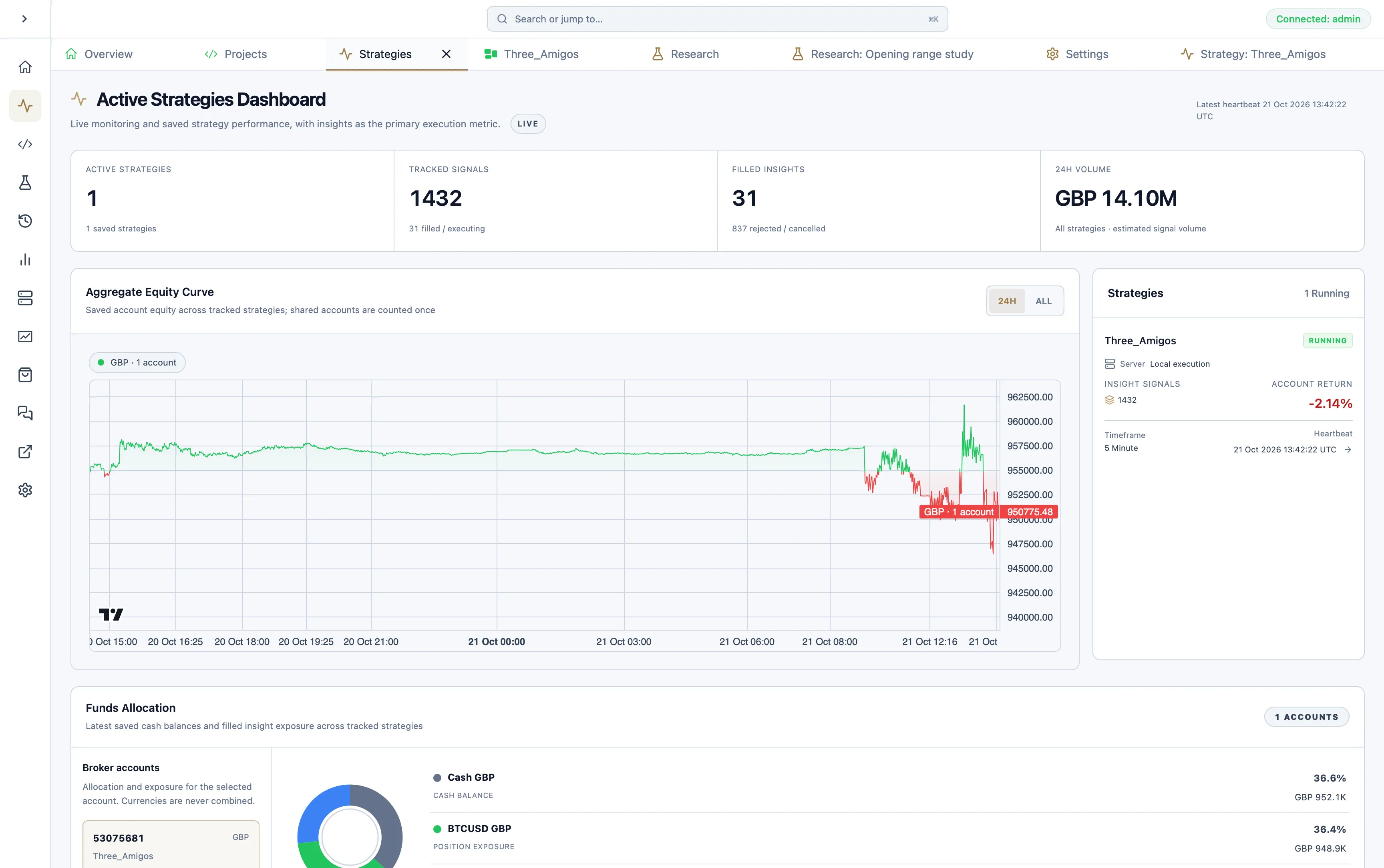
- which sessions are running
- which strategies have active, closed, rejected, or cancelled insights
- whether account, equity, and heartbeat data are healthy
- how live return is developing across the current session
Strategy Detail
Section titled “Strategy Detail”The detail view focuses on one active strategy and expands the runtime data into:
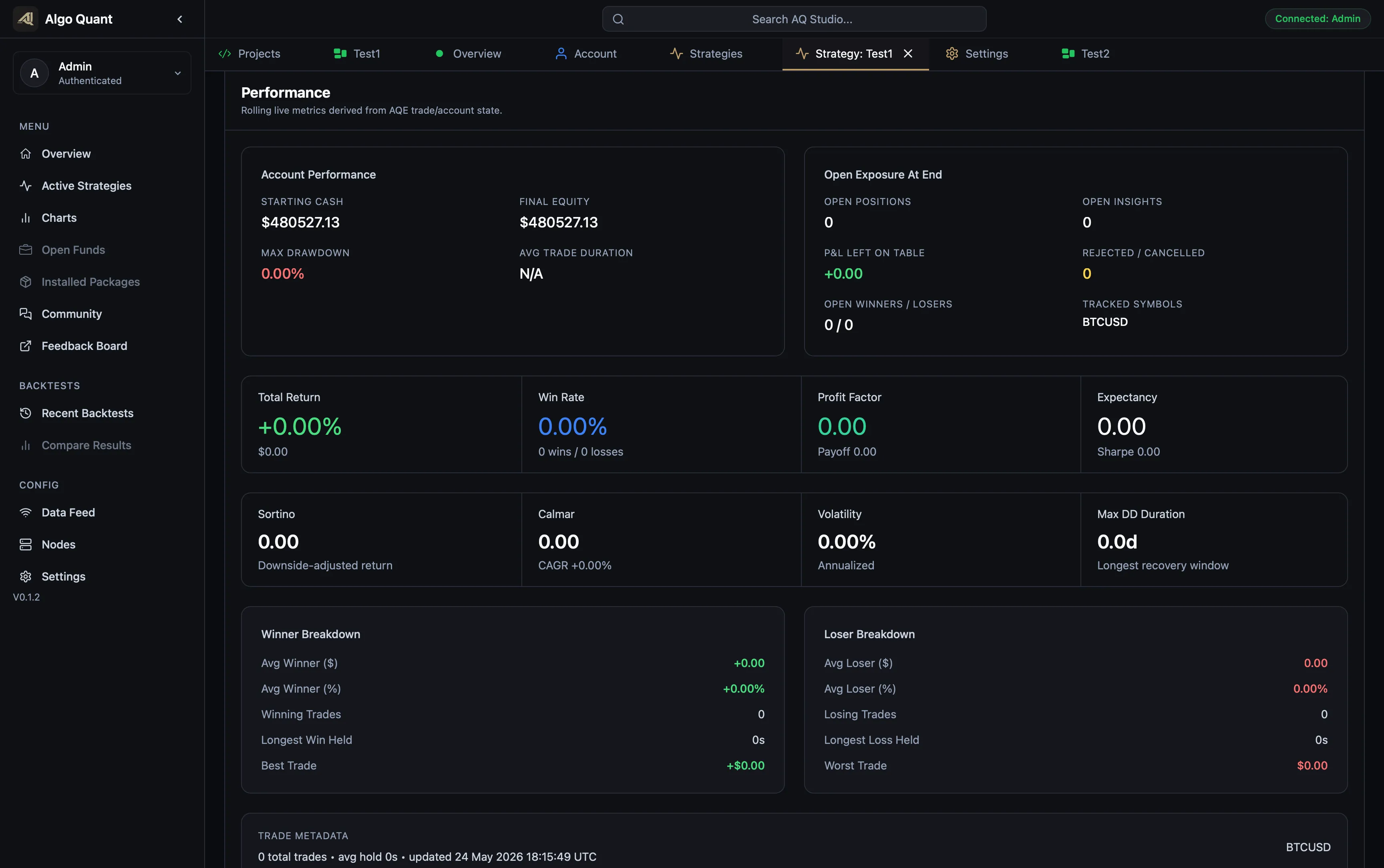
- performance metrics
- live equity curve
- latest account state
- strategy events
- AQS Cloud session information
- Insight Flow and the Insight Inspector
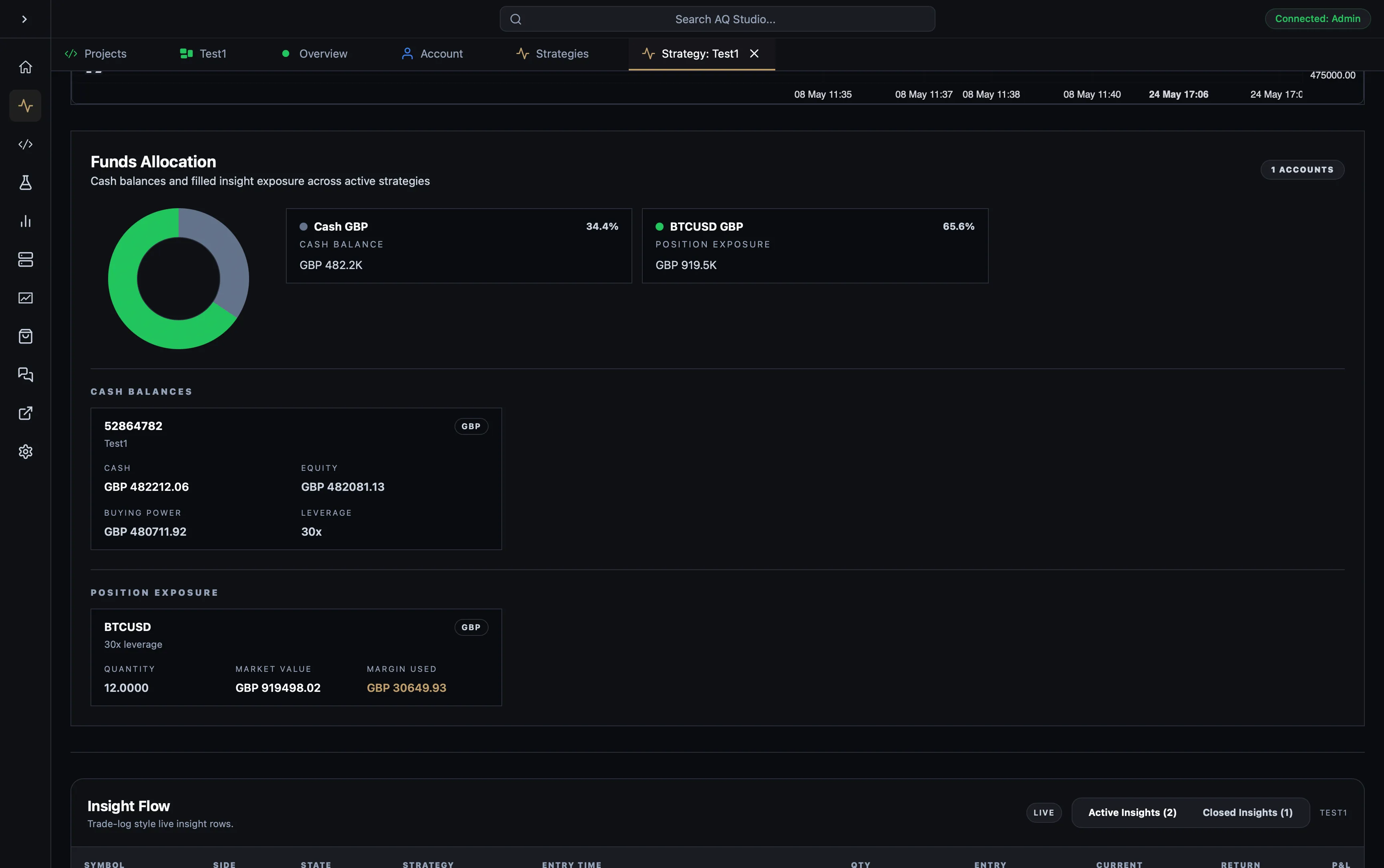
Insight Flow
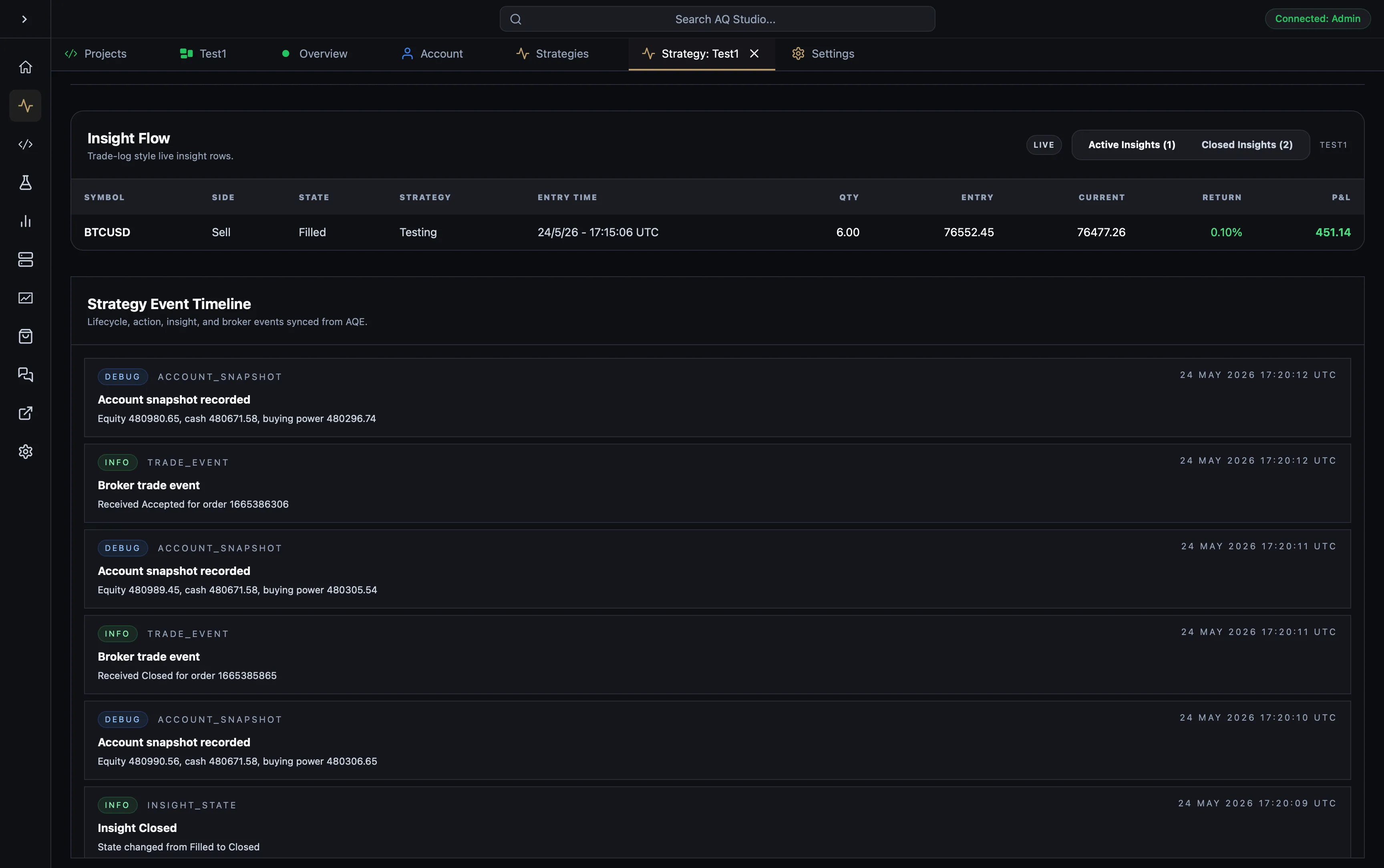
Section titled “Insight Flow”Insight Flow is the main table used to inspect strategy activity. Active and closed insights are separated so runtime supervision stays readable as the session grows.
Insight Inspector
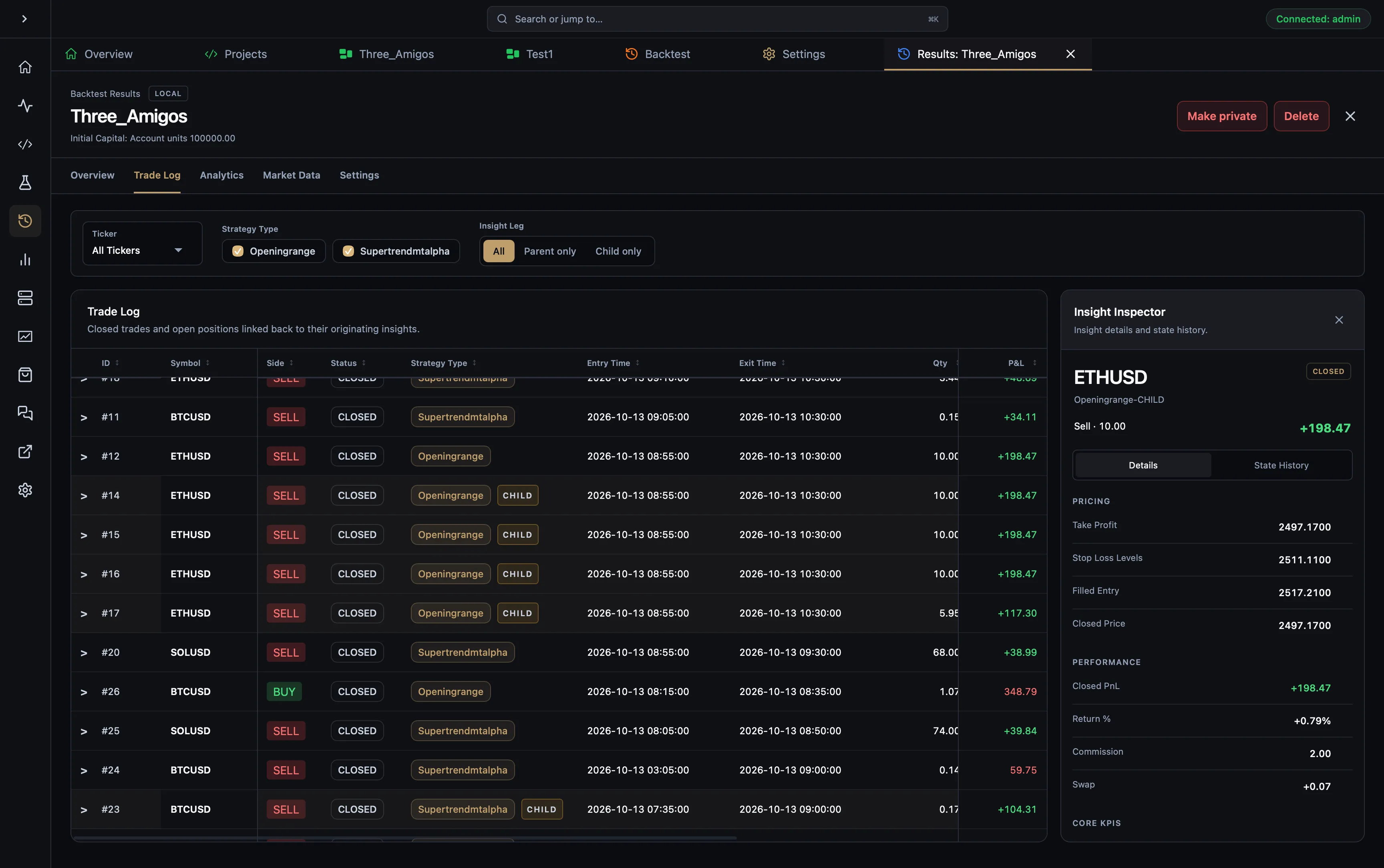
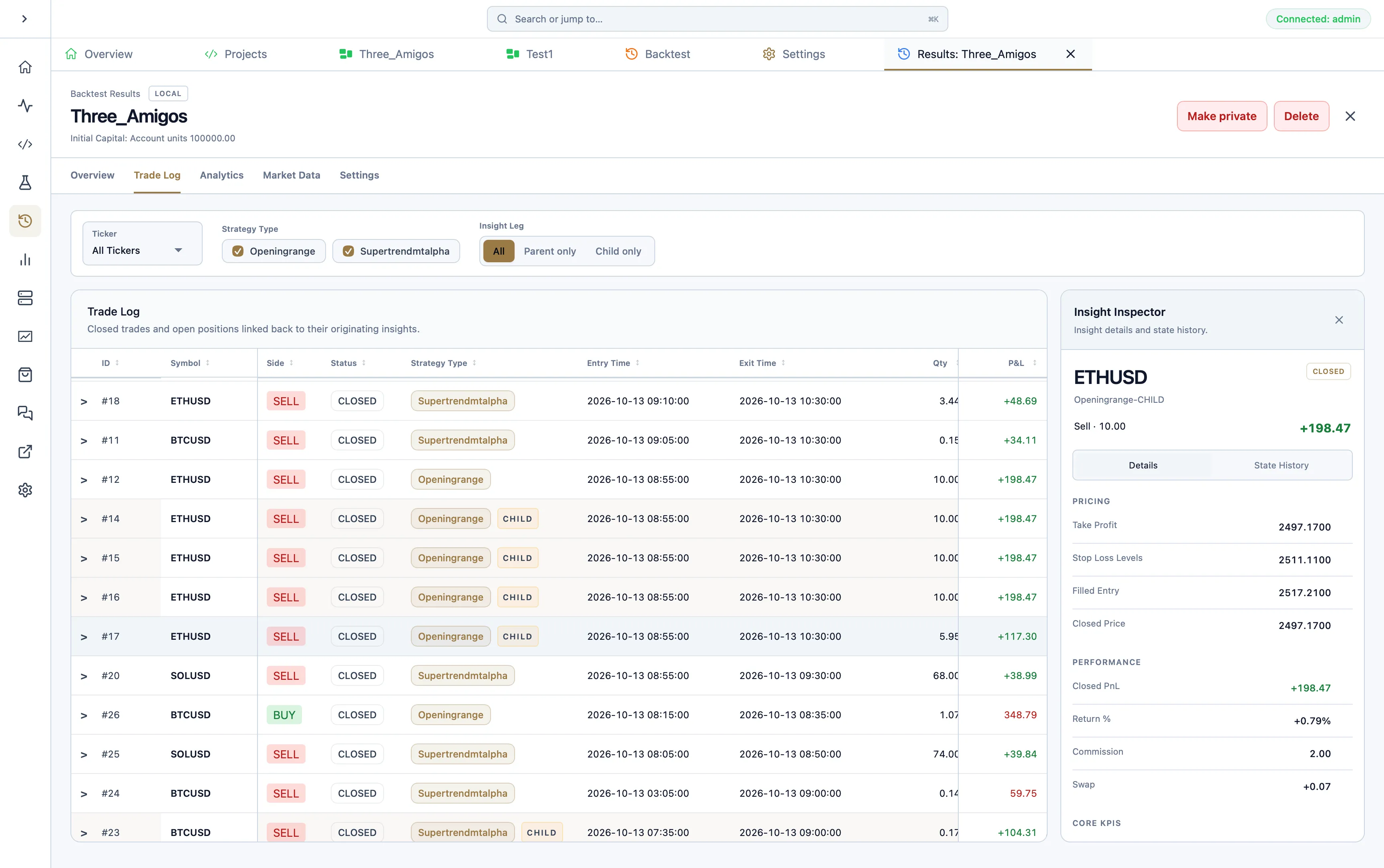
Section titled “Insight Inspector”The Insight Inspector is the detailed execution view for a single insight. It combines asset context, key order information, levels, state history, and execution outcomes in one panel.
Start a supervised run
Section titled “Start a supervised run”- Open the strategy in the editor and review its datafeed, execution broker, universe, timeframe and parameters.
- Choose the local or remote execution server. Bind an AQS Cloud strategy if you want cloud supervision.
- Start the run and wait for compilation and initialisation to finish.
- Open Active Strategies, then the strategy detail view. Confirm its status, account, latest observations and insight activity.
- Review a first execution in the Insight Inspector and compare it with the broker’s order and position records.
These steps describe the current development workflow. Update the desktop, engine and MT5 bridge together when adopting the newer execution and recovery features.
Read health before taking action
Section titled “Read health before taking action”A running strategy can temporarily have a stale desktop view. Review the synchronisation indicator and latest data timestamps before deciding that execution has stopped. The current detail view exposes pending critical updates, telemetry, reconciliation and failed-delivery counts where available.
Reconciliation checks retained execution history during recovery. Unresolved items or a growing failure count need investigation. Repeatedly starting another instance can create an account ownership conflict and does not repair delayed monitoring.
Account equity and strategy performance are not always interchangeable: another strategy or manual trade may affect the same broker account. Check the selected account and live session when interpreting P&L.
Stop and verify
Section titled “Stop and verify”Request Stop from the strategy detail view and follow the Stopping indicator and teardown-progress events. Wait for completion before deploying a replacement. If the operation fails, read the reported reason and check remaining exposure at the broker.
Runtime logs remain local to the execution machine; strategy events and insight history provide the cloud-visible operational record. For the distinction between execution and delivery health, see Live Runtime.
We use essential cookies and storage for sign-in, account security, colour theme preferences, this notice, and required PostHog internal usage, session quality, and reliability metrics. We do not use advertising cookies.